
Smartwatches powered by Google's Wear OS—including the Samsung Galaxy Watch series, the Google Pixel Watch, and various TicWatch and Xiaomi models—are far more than simple accessories that display incoming notifications. They are full-fledged computing devices equipped with advanced custom shortcut actions, accessibility tools, and connectivity features that many users never explore.
If you want to move beyond basic settings and get the absolute most out of your watch, configuring these key options will transform your experience. Here is our comprehensive guide to 25 Wear OS settings, gestures, and features you should adjust today.
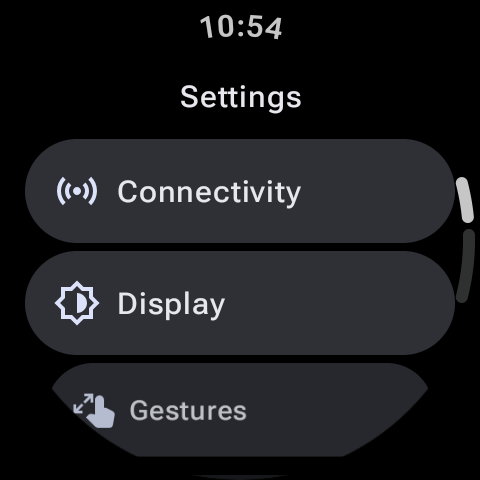
Part 1: Advanced Interaction & Gesture Control
1. Customize Physical Key Shortcuts
You do not have to accept the default apps that open when you click your watch keys. Navigate to Settings > Advanced features > Customize keys (Galaxy Watch) or gestures (Pixel Watch) to bind a double-press or a long-press to your favorite programs. This allows you to launch tools like WearSSH in seconds.
2. Hand Gesture: The Double Pinch
In your watch's Gestures or Accessibility menu, toggle on gesture controls. The Double Pinch (tapping your index finger and thumb together twice quickly) allows you to answer calls, pause music, dismiss timers, or take photos without touching the screen.
3. Hand Gesture: Wrist Shake to Dismiss
Toggle on the wrist turn gesture to dismiss incoming phone calls or silence ringing alarms. A quick shake of your arm will dismiss the active noise when your other hand is busy.
4. Cover-to-Mute (Palm Cover)
If your smartwatch rings in a meeting or a quiet zone, place your flat palm over the screen. The light sensor will detect this cover action and immediately silence the sound and vibration.
5. Standardize Swipes for Quick Navigation
On Wear OS, swiping up opens the App Launcher, showing your installed apps. Swiping down pulls down your quick settings panel. Make sure you customize your app view (grid vs. list) in the display settings to scroll faster.
Part 2: Notification & Companion Phone Hacks
6. Mute Phone Notifications While Wearing Your Watch
Prevent redundant buzzes in your pocket by setting your phone to silent whenever the watch is active on your wrist. Open the companion watch app on your phone, go to Notifications, and toggle on "Mute phone notifications while wearing watch".
7. Curate App Notification Filters
Waking up for every spam alert wastes battery. Go to your watch companion app, look at your notifications list, and turn off alerts for everything except direct messages, calls, and calendar alerts.
8. Set Up Smart Quick Replies
To respond quickly from the wrist, customize your list of quick response texts (such as "On my way," or "I will call you back"). You can edit these template lists under General Settings in your phone's companion app.
9. Leverage Voice Dictation
Typing on a tiny watch keyboard can lead to errors. When replying, select the microphone icon to dictation. Wear OS voice-to-text engines are highly accurate, converting speech to text instantly.
10. Install Apps Remotely via Smartphone
You don't need to navigate the Play Store on your watch display. Open the Google Play Store on your phone, find a watch-compatible app, tap the dropdown beside "Install," and select your smartwatch to trigger the download remotely.
Part 3: Display & Visual Customization
11. Optimize Always-On Display (AOD)
AOD keeps a dim clock active, but it drains battery. If you want maximum battery, disable AOD in Settings > Display. If you keep it active, ensure you select a pitch-black OLED watch face to protect pixels.
12. Customize the Quick Settings Panel Toggles
Pull down the Quick Settings shade, swipe to the last page, and click the Pencil (Edit) icon. You can rearrange tiles to bring your most important toggles (like Battery Saver, Bedtime Mode, or Water Lock) to the first page.
13. Tweak Font Size for Easy Reading
If you find notification fonts too small, go to Settings > Display > Font size and scale text up. This is incredibly helpful for reading notifications at a quick glance.
14. Manage Swipe Tiles
Tiles give you instant access to metrics (weather, tasks, music). Tap and hold any tile on your watch to enter edit mode. Rearrange tiles or swipe up to delete unused panels to keep your carousel clean.
15. Change Watch Face Palettes
To match your outfit, tap and hold your watch face, select Customize, and cycle through available color options and complication configurations.
Part 4: Health Tracking & Battery Optimization
16. Configure Heart Rate Polling Intervals
Measuring your heart rate every second drains battery. Unless tracking an active workout, go to your health app settings (Samsung Health or Fitbit) and change polling to "Every 10 minutes while still" to save energy.
17. Manage Always-On Screen Lock Security
If you use Google Wallet for mobile payments, setting up a Screen Lock (PIN or Pattern) is required. Go to Settings > Security > Screen lock. The watch only prompts for the PIN once when you first strap it on, keeping it secure while remaining unlocked on your wrist.
18. Enable Bedtime Mode
To sleep uninterrupted, pull down quick settings and tap the Crescent Moon / Bedtime Mode icon. This disables always-on screen activation, tilt-to-wake gestures, and silences all notifications during the night.
19. Turn On Water Lock in the Pool
Water drops on a screen can register as accidental touch inputs. Before entering the water, tap the Water Droplets (Water Lock) icon in quick settings. This locks the screen. To turn it off, press and hold the physical home button for 2 seconds to eject water with a tone speaker sound.
20. Proactive Battery Saver Activation
If you know you will be away from a charger for a long duration, turn on Battery Saver Mode from the quick settings panel immediately. It keeps notifications active but shuts off background sensors, extending life significantly.
Part 5: Advanced Controls & Accessibility Hacks
21. Configure Emergency SOS Toggles
Go to Settings > Safety and emergency and verify that Emergency SOS is active. Clicking the side home button 5 times quickly will automatically call emergency services and text your coordinates to safety contacts.
22. Set Up Automatic Fall Detection
Under safety settings, enable Fall Detection. If the watch registers a hard fall followed by 60 seconds of inactivity, it will sound an alarm, vibrate, and automatically dial emergency services if you do not respond.
23. Pair Bluetooth Headphones Directly
Leave your phone behind on your run. Go to Settings > Connections > Bluetooth and pair your headphones directly with your watch. This allows you to listen to offline downloaded music from Spotify on the go.
24. Tweak Accessibility Features
If you navigate to Settings > Accessibility, you can activate voice-over text-to-speech, color correction profiles, or turn on audio balance options to tailor your watch to your physical needs.
25. Unlock Developer Options & ADB
If you want to side-load apps or take screenshots like we did for this blog post, go to Settings > System > About watch > Software info and tap Software version 7 times. This unlocks Developer Options in the main settings, allowing you to activate ADB debugging.
Master the Wrist Experience
By customizing these 25 hidden settings and utilizing gestures, you turn your Wear OS smartwatch from a basic tracking device into a highly responsive, personalized mini-computer. Spend 10 minutes exploring your watch menus today and optimize your layout for daily use.