
One of the greatest benefits of owning a modern Wear OS smartwatch is the freedom to leave your phone behind during outdoor workouts. Whether you are training for a marathon or hiking on weekend trails, your smartwatch can theoretically track your pace, elevation, and route map independently. However, "theoretically" is the keyword. A common complaint among Google Pixel Watch and Samsung Galaxy Watch users is GPS inaccuracies—runs displaying routes cutting straight through solid buildings, fitness apps losing signal halfway through a workout, or the watch taking five to ten minutes just to secure an initial GPS lock.
Because smartwatch bodies are small, the GPS antennas inside them are tiny and easily obstructed by your wrist, clothing, or environment. Let's look at the mechanics of smartwatch location services and outline how to fix GPS drift, speed up location locks, and improve tracking accuracy on your Wear OS device.
Tethered vs. Standalone GPS: How Wear OS Routes Data
Many users do not realize that Wear OS smartwatches actually use two different modes to gather location data. Understanding how these modes switch is crucial to troubleshooting accuracy issues.
- Tethered GPS (Phone Connected): If your phone is within Bluetooth range when you start an outdoor activity, your smartwatch will turn off its internal GPS receiver and request coordinates from your phone. This is done to preserve watch battery life. However, if your phone's location services are unoptimized or the phone is buried deep inside a backpack, the watch's recorded route will suffer.
- Standalone GPS (Disconnected): When you run without your phone, your watch turns on its internal GPS radio. This radio consumes significant battery power and must establish a direct line-of-sight connection with multiple orbital satellites.
Common GPS Scenarios and Environmental Errors
The quality of your GPS lock is highly dependent on your surroundings and settings. Below is a comparison of typical environments and their impact on smartwatch location accuracy:
| Environment | GPS Performance | Common Issue | Workaround |
|---|---|---|---|
| Open Field / Park | Excellent (5-15s Lock) | None, strong line-of-sight. | Best for starting workouts. |
| Urban Canyon (Skyscrapers) | Poor (60s+ Lock) | Signal multipath reflection off buildings. | Enable Google Location Accuracy. |
| Dense Forest / Canopy | Moderate (30-45s Lock) | Signal absorption by wet foliage. | Wear watch face pointing outward. |
| Cloudy / Stormy Weather | Slightly Degraded | Atmospheric attenuation. | Wait for stable solid lock icon before moving. |
How to Troubleshoot and Fix GPS Errors on Wear OS
Follow these steps to recalibrate your watch location settings and solve tracking delays:
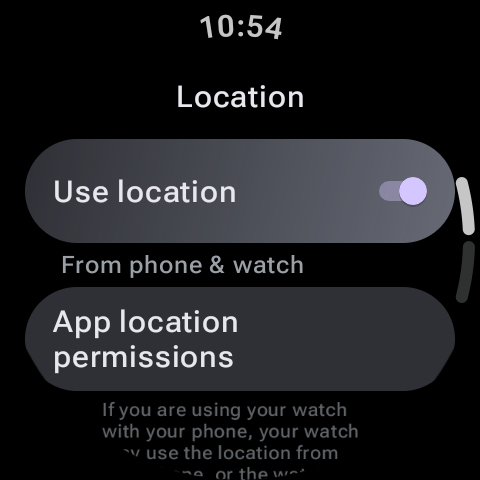
1. Enable Google Location Accuracy (High Accuracy Mode)
Wear OS utilizes Google Location Services to speed up satellite locks. Instead of relying solely on orbital satellites, Google uses local Wi-Fi router networks and cellular tower IDs to immediately pinpoint your approximate location, allowing the GPS antenna to lock onto satellites in seconds.
To enable this: Go to Settings > Location on your watch, and toggle on Google Location Accuracy (or ensure the location mode is set to "High Accuracy").
2. Clear Location Cache and Force Sync A-GPS
Smartwatches use "Assisted GPS" (A-GPS) files containing satellite trajectory data (ephemeris and almanac data). This data is downloaded from the internet via your phone and tells your watch exactly where to look for satellites. If this data becomes corrupted or is outdated, the watch will take a long time to search the sky.
To force update A-GPS, keep your watch connected to your phone via Bluetooth, open the companion Wearable app, and ensure your watch syncs successfully. Alternatively, restart the watch while connected to Wi-Fi to trigger a fresh background update of satellite almanac files.
Pro Tip: The "Pre-Workout Standstill"
Never start running or cycling immediately after tapping "Start" on your workout app. In almost all apps (like Strava, Samsung Health, or Fitbit), the GPS icon in the countdown screen will blink while searching for a signal and turn solid green when a lock is achieved. If you start moving before the icon is solid, the watch has to calculate Doppler shifts while searching for satellites, which makes securing a lock take three times longer. Stand still in an open area until the GPS indicator turns solid.
3. Disable Power Saving Restrictions
If you have enabled Battery Saver Mode or restricted background activity on your watch, the system will throttle the GPS polling frequency. Instead of checking your coordinates every second, it might only check every 10 or 15 seconds, creating straight lines that cut through corners on your workout maps. Turn off Battery Saver Mode in the Quick Settings shade before launching outdoor activities.
4. Adjust Wear Style and Clothing
Smartwatch GPS antennas are usually positioned directly under the screen bezel. If you are wearing thick winter jackets or metallic wristbands, they can block the radio signals. Try wearing the watch slightly higher on your wrist bone and ensure the screen is exposed to the sky during workouts.
Summary
GPS tracking bugs are usually caused by stale A-GPS files or moving before securing a solid satellite lock. By ensuring Google Location Accuracy is enabled, standing still for 30 seconds before your run, and turning off battery saving modes, you can guarantee a perfect, accurate path tracking experience on your Wear OS watch.