
The dream of a smart home is seamless convenience—but unlocking your phone, navigating past notifications, and opening an app just to turn off a bedside light is often more work than simply flipping a physical switch. True convenience is having your home control center strapped to your wrist. With the official Google Home app for Wear OS, you can adjust lights, monitor smart plugs, change thermostat settings, and receive doorbell alerts with a quick tap of your watch screen.
Whether you are relaxing on the couch, carrying groceries, or returning home after dark, controlling your surroundings from a Wear OS device (like the Samsung Galaxy Watch, Google Pixel Watch, or TicWatch) is incredibly efficient. Here is a guide on how to configure and utilize Google Home on your wrist.
Getting Started: Requirements and Installation
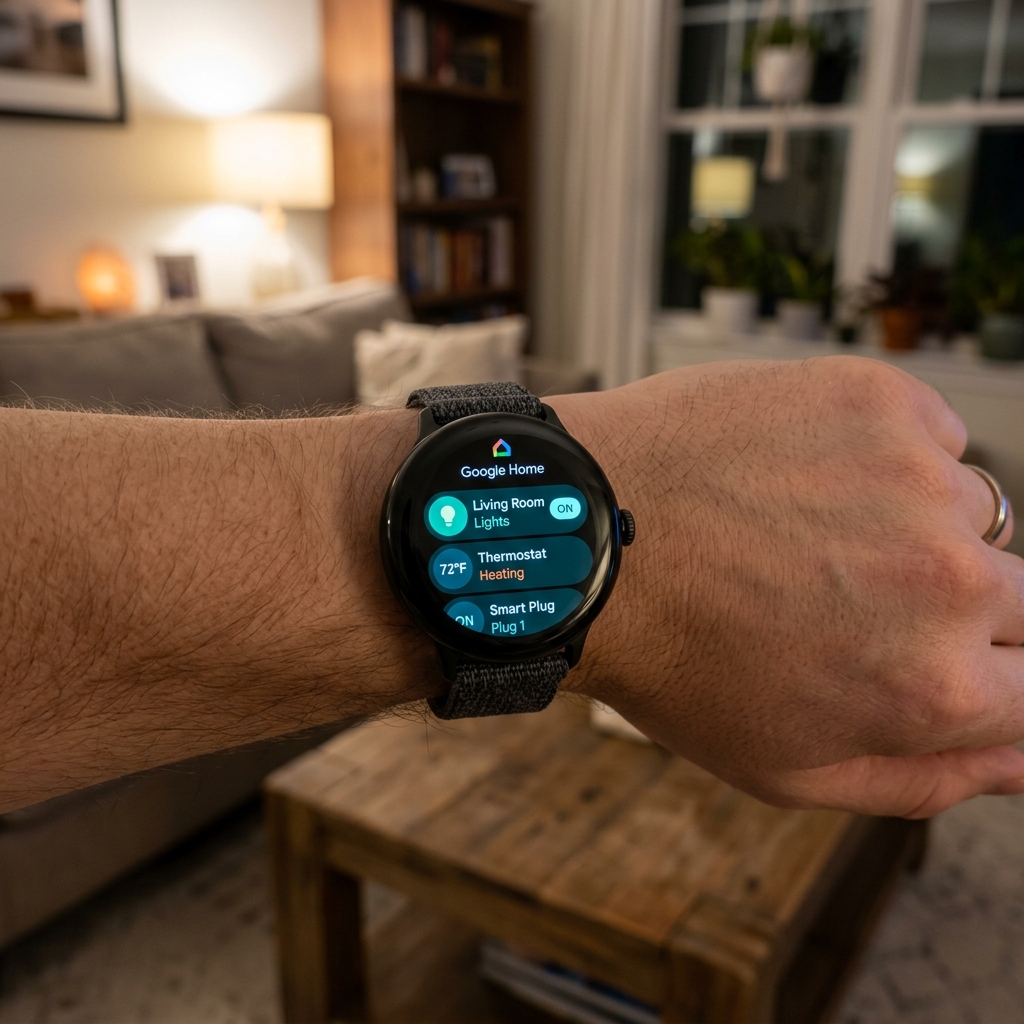
To use Google Home on your smartwatch, ensure your setup meets these conditions:
- Your watch must run Wear OS 3 or higher. Older Android Wear versions do not support the modern Google Home client.
- Your smartwatch must be logged into the same Google Account that controls your Google Home ecosystem.
- Your smart home devices must be already set up and functioning in the Google Home app on your phone.
If you don't have the watch app installed, open the Play Store on your watch, search for "Google Home," and tap Install. Once opened, it will sync with your phone's home database automatically.
Navigating the Wear OS Google Home Interface
The watch app is designed for fast, compact interactions. When you open Google Home on your wrist, you will see a list of your Favorites first, followed by your rooms. The interface is optimized for sliding interactions:
- Smart Lights: Tap a light bulb to turn it on or off. Swipe left/right on the device card to reveal a slider where you can adjust brightness percentages or change color profiles.
- Thermostats: Tap your thermostat to view the current temperature. Tap the plus (+) and minus (-) symbols to raise or lower the target temperature immediately.
- Smart Plugs and Fans: Tapping these cards acts as a simple binary power switch, toggling them on or off instantly.
- Cameras and Doorbells: If you have a Nest Doorbell or compatible camera, you can receive image alerts on your watch face when someone rings. Tapping the alert displays a low-latency live video stream from your front door directly on your watch screen.
Adding Google Home Tiles for Fast Access
To control your home without even launching the application, you can take advantage of Wear OS Tiles. Swiping left from your watch face brings you to these panels instantly. Google Home offers a highly customizable tile:
- Swipe right-to-left until you reach the end of your carousel, then tap the "+" (Add tile) card.
- Scroll through the categories to find the Google Home Favorites tile and tap to add it.
- Once added, tap and hold the tile, then tap Edit.
- Select the specific 3 to 5 smart devices you interact with most frequently (e.g. Living Room Light, Bedroom Fan, Front Door Lock).
- Press the side physical button to save. Now, your most common smart home controls are just a swipe away.
Pro Tip: Voice Integration
Don't forget the power of Google Assistant. Simply raise your wrist, say "Hey Google, turn off all lights," or "Set thermostat to 21 degrees." Assistant on Wear OS processes commands locally and executes them via the Google Home cloud almost instantaneously.
Comparing Smart Home Control Protocols
Managing a smart home from a wearable requires a combination of speed, accessibility, and reliability. Let's compare the different methods of controlling your devices from a Wear OS device:
| Method | Speed to Execute | Hands-Free capability | Ideal For |
|---|---|---|---|
| Google Home App | Medium (Requires app launch) | No | Detailed room adjustments & checking cameras |
| Favorites Tile | Fast (1 swipe & tap) | No | Toggling your daily 3-5 favorite lights or plugs |
| Google Assistant | Fastest (Voice trigger) | Yes | Bulk actions ("Turn off house") or hands-full tasks |
Optimizing Your Wrist-Based Smart Home Setup
To ensure a reliable and speedy smart home experience, keep these configurations in mind:
- Pin Your Favorites: Organize your Favorites tab in the Google Home app on your phone. The watch app mirrors the phone's favorites order, so placing your most used devices at the top saves endless scrolling on the watch.
- Keep Watch Connected: Background actions are routed through the phone unless the watch has Wi-Fi or LTE. If commands feel sluggish, check if your watch's Bluetooth connection to your phone is stable.
- Rename Devices Clearly: Give your smart home devices short, phonetic names (like "Hall Light" instead of "Philips Hue Bulb 39A"). This significantly increases Google Assistant's voice recognition success rate.
Final Thoughts
Controlling your smart home with Wear OS and Google Home bridges the gap between digital automation and physical comfort. With quick-access tiles, voice controls, and streaming camera notifications, you can truly command your environment from the wrist. Download the Google Home app to your watch today and experience the convenience of a modern connected home!