
If you deliver presentations for work or school, you know the importance of body language. Pacing the stage, gesturing naturally, and maintaining eye contact with your audience makes your delivery engaging. However, walking back to your laptop to hit the spacebar or clutching a plastic clicker limits your movement. The solution is already on your arm: your Wear OS smartwatch can double as a presentation controller.
By connecting your watch to your computer via Bluetooth, you can control PowerPoint slides, Google Slides, or PDF presentations. You can move forward, go back, track your remaining presentation time, and receive silent haptic vibration alerts on your wrist to keep you on schedule. Here is a guide on how to configure your Wear OS device (like a Samsung Galaxy Watch or Google Pixel Watch) as a presentation remote.
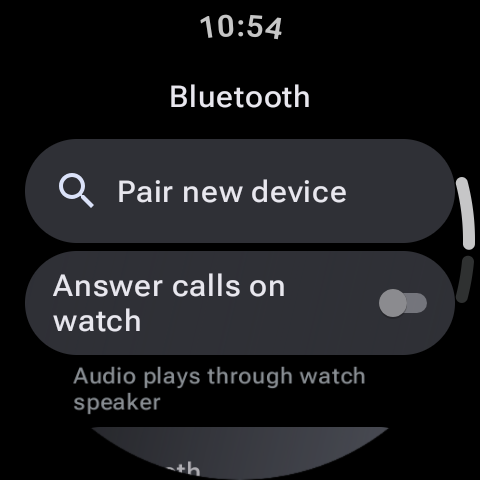
How PowerPoint Controllers Work on Wear OS
Most presentation controller apps on Wear OS utilize standard HID (Human Interface Device) Bluetooth profiles. This means the watch emulates a Bluetooth keyboard or mouse. When you tap the "Next" button on your watch, it sends a standard "Page Down" or "Right Arrow" keyboard command to the paired computer. This makes the connection highly reliable and compatible with Windows, macOS, and Linux without requiring custom drivers.
Step-by-Step Setup Guides
Here are the three most common methods for controlling presentations from your watch:
Method 1: Samsung PPT Controller (Best for Galaxy Watch)
Samsung Galaxy Watches come with an official, pre-installed app called PPT Controller. It is simple to configure:
- Open the PPT Controller app on your Galaxy Watch.
- Select Connect to place the watch into Bluetooth pairing mode.
- On your computer (Windows or Mac), open your Bluetooth settings, search for new devices, and select your watch. Confirm the pairing pin.
- Once connected, launch your PowerPoint presentation on your computer.
- Use your watch screen: tap the right arrow button to go forward, the left arrow button to go back, or rotate the watch's physical bezel to navigate slides.
Method 2: WearMouse (Universal Keyboard/Mouse Emulator)
If you use a Google Pixel Watch, TicWatch, or Xiaomi Watch, you can download WearMouse (or Bluetooth Keyboard & Mouse for Wear OS) from the Play Store:
- Install and open the app on your watch. Select the Bluetooth connection mode.
- Pair the watch with your computer via your computer's standard Bluetooth settings.
- Once paired, the app allows you to choose different profiles:
- Presentation Mode: Displays large forward/backward buttons.
- Air Mouse Mode: Move your hand in the air to guide the mouse pointer on your computer screen using the watch's gyroscope.
- Trackpad Mode: Turn your watch display into a touchpad.
Pro Tip: Silence Your Wrist
Before stepping on stage, turn on Do Not Disturb (DND) or Theater Mode on your watch. This blocks incoming text messages and email notifications from popping up on your screen, allowing you to focus on your presentation without distractions.
Key Presentation Features on Wear OS
Using a smartwatch for presentations offers several advantages over a standard plastic clicker:
- Haptic Timer Alerts: In the app settings on your watch, you can set your presentation length (e.g. 20 minutes). The watch will vibrate when you reach the halfway mark, and vibrate again when you have 5 minutes left, helping you pace your speech.
- View Slide Numbers: The app screen displays your current slide number and elapsed time, letting you monitor your progress without looking at your laptop.
- Laser Pointer Simulation: Some apps utilize the watch's gyro sensor to project a virtual red laser pointer onto the screen when you drag your finger across the watch display.
Remote Presenter App Comparison
| App Name | Supported Watches | Timer Alerts | Pointer Feature | Ideal For |
|---|---|---|---|---|
| Samsung PPT Controller | Galaxy Watch series | Yes | No | Galaxy Watch users with Windows laptops |
| WearMouse | All Wear OS watches | No | Yes (Air Mouse) | Universal cross-brand presentations |
| Unified Remote | All Wear OS watches | No | No | Complex media server and slide controller |
Ensuring a Flawless Presentation
To avoid technical glitches on stage, follow these basic preparation steps:
- Disable Sleep Mode on Watch: Set your watch screen timeout to 5 minutes or turn on Always-on Display so the watch screen doesn't go dark while you are speaking.
- Check Battery Level: Emulating a Bluetooth keyboard and keeping the screen active consumes battery. Ensure your watch has at least 30% battery before starting a long presentation.
- Test Your Range: Walk around the stage area before the audience arrives. Check if the watch remains connected to your laptop at all corners of the room.
Final Thoughts
Your Wear OS smartwatch is a capable tool for work and productivity. By pairing it as a Bluetooth presenter remote, you can free your hands, pace the stage, and deliver your presentation with confidence. Open your watch's Play Store, download a controller app, and command the room during your next presentation!