
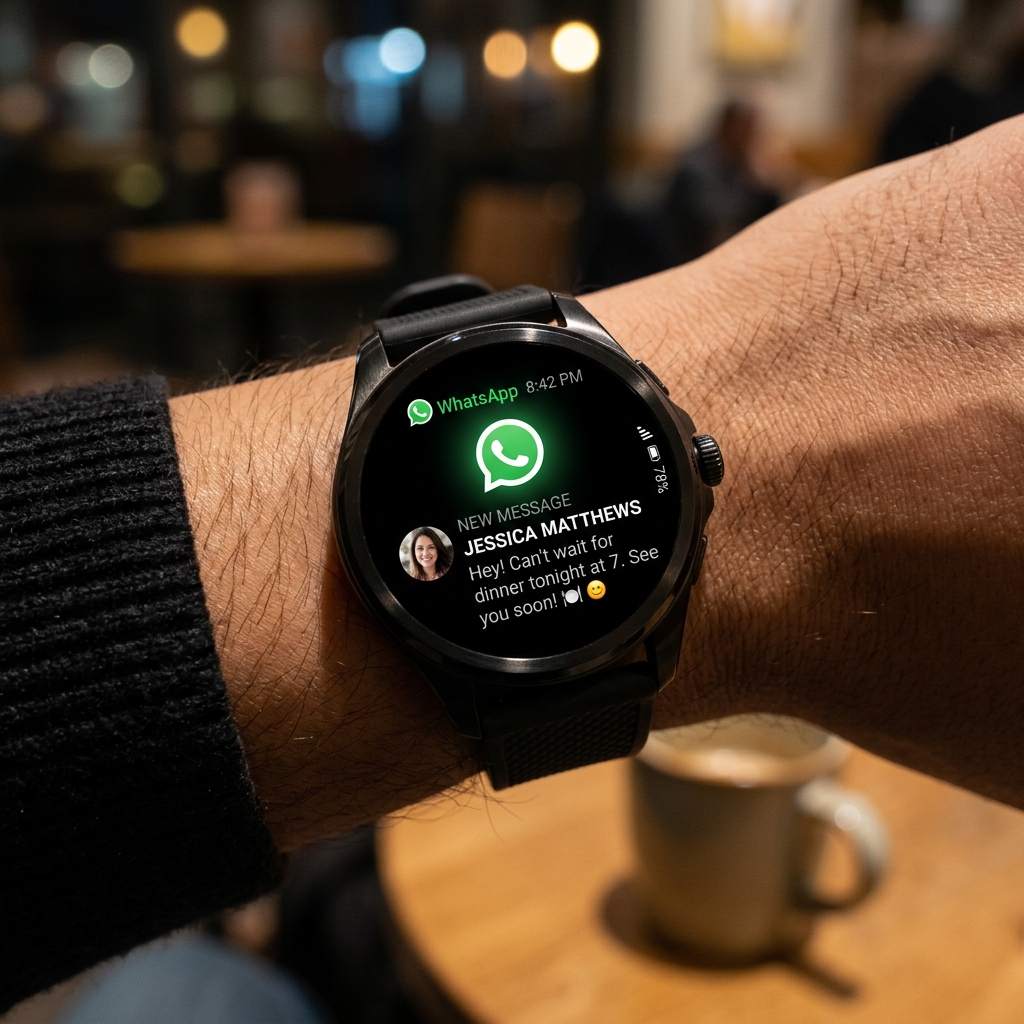
For years, using WhatsApp on a smartwatch felt like a half-baked compromise. Users could only reply to active notifications as they arrived; if they accidentally dismissed an alert, there was no way to open their chat inbox or initiate a new message from the watch itself. That changed with the release of the official standalone WhatsApp application for Wear OS. Now, you can browse your complete chat history, send voice notes, and make internet calls directly from your wrist.
This guide provides a comprehensive walkthrough on how to install, set up, and master the official standalone WhatsApp application on your Wear OS device (compatible with Wear OS 3, 4, 5 and above, including the Samsung Galaxy Watch and Google Pixel Watch series).
Prerequisites for Standalone WhatsApp
To use the official WhatsApp app on your watch, make sure your devices meet the following basic requirements:
- Your smartwatch must run Wear OS 3 or higher. Earlier versions are not supported by the official Meta app.
- Your smartphone must be connected to the internet and have the latest version of WhatsApp installed.
- Your smartwatch must be connected to your phone via Bluetooth, or have active Wi-Fi/LTE internet access during the initial setup.
Step-by-Step Installation and Linking Setup
Setting up WhatsApp on your watch requires an initial pairing handshake, similar to setting up WhatsApp Web or Desktop. Follow these steps:
- Open the Play Store app on your Wear OS smartwatch.
- Search for "WhatsApp" and tap the official application published by Meta Platforms, Inc. Tap Install.
- Once installed, open the app on your watch. You will be greeted with an 8-character pairing code on the watch screen.
- A notification will simultaneously pop up on your companion smartphone asking if you are trying to link a new device. Tap the notification.
- If the notification does not appear, open WhatsApp on your phone, go to Settings > Linked Devices, tap Link a Device, and select the alphanumeric code option.
- Enter the 8-character code displayed on your watch screen into your phone app.
- Wait a few moments for the database to sync. Your watch will download your recent chat threads, and your setup is complete!
Pro Tip: LTE Standalone Usage
If you have an LTE-enabled smartwatch with an active eSIM, you can leave your phone completely at home! The standalone Wear OS app will fetch and send messages directly over cellular data networks, keeping you connected during outdoor runs or grocery runs.
Mastering the Wrist Interface
The Wear OS WhatsApp interface is split into two primary areas: your Chat Inbox and the App Tile. The main inbox displays your active conversations. Swiping down reveals your settings and archived chats. The application supports various communication modes to fit the small screen:
1. Typing and Keyboard Input
Tapping a conversation opens the chat history. To reply with text, tap the text bar. You can use your watch's default virtual keyboard to swipe-type, type letter-by-letter, or utilize the Voice-to-Text dictation microphone to speak your message, which the system automatically converts into written text. This is highly accurate and far faster than typing on a 1.4-inch display.
2. Sending Voice Notes
Sometimes you want to send a raw voice recording. The Wear OS app features a dedicated microphone icon next to the input box. Tap it to immediately start recording your voice note. When finished, tap the send button. You can also listen to incoming voice notes directly through your watch's built-in speaker or connected Bluetooth earbuds.
3. Quick Replies and Emojis
For rapid-fire communication, scroll to the bottom of a chat to find pre-configured Quick Replies (like "Okay," "Yes," "I'm on my way," or "Call you later"). You can customize these in settings. Tapping the smiley face icon opens the emoji picker, allowing you to react with a single tap.
Feature Comparison: Watch App vs. Phone App
| Feature | Wear OS App | Smartphone App |
|---|---|---|
| Send/Receive Text | Yes | Yes |
| Voice Notes | Yes (Record & Play) | Yes |
| View Images/Media | Yes (Low Resolution) | Yes (Full Resolution) |
| Initiate Voice Calls | Yes (Over Internet) | Yes |
| Video Calls | No | Yes |
| Status Updates | No | Yes |
Troubleshooting Connection Errors
If your WhatsApp watch client is stuck on a "Connecting..." loading loop or fails to sync incoming messages, try these troubleshooting steps:
- Restart Both Devices: Power cycle both your watch and phone. This clears minor local network caches.
- Exempt from Battery Saver: Ensure that WhatsApp is not being put to sleep on your phone. Go to your phone's battery settings and mark WhatsApp as "Unrestricted."
- Re-link the Device: Open WhatsApp on your phone, go to Linked Devices, select your watch, and tap Log Out. Open the watch app again to generate a new link code and re-establish a clean database handshake.
Final Thoughts
The official standalone WhatsApp client for Wear OS represents a major step forward for wearable productivity. It frees you from having to reach for your pocket every time a notification buzzes. By taking advantage of link codes, voice note recording, and smart dictation, you can stay connected with friends and family using only the watch on your wrist!