
High-Intensity Interval Training (HIIT) is one of the most time-efficient ways to burn calories, boost metabolic rate, and improve aerobic capacity. The core concept of HIIT is simple: alternate between short bursts of maximum-effort exercise (like sprinting, kettlebell swings, or burpees) and brief periods of active recovery or rest. However, executing a successful HIIT workout requires precise timing. If your work intervals are too short or your rest periods drag on too long, the cardiovascular benefits diminish.
This is where your Wear OS smartwatch becomes an invaluable training partner. Instead of clutching a smartphone or looking at a wall clock, your watch can act as a dedicated coach—using custom interval timers, heart rate zone monitoring, and tactile vibration prompts to guide you through your workout. In this article, we'll look at how to configure your Wear OS device to optimize your HIIT training sessions.
The Physiology: Heart Rate Zones in Interval Training
To get the physiological benefits of HIIT, you need to ensure you are pushing hard enough during the active intervals. The best way to measure this intensity is through **Heart Rate Zones**:
- Zone 1 & 2 (Warm-up & Recovery): 50% to 70% of Max Heart Rate (MHR). Your heart rate should drop back to this range during rest intervals.
- Zone 3 & 4 (Aerobic & Anaerobic): 70% to 90% of MHR. The sweet spot for sustained effort and calorie burning.
- Zone 5 (Redline): 90% to 100% of MHR. This is where you should be during your high-intensity work intervals, pushing your limits.
Modern Wear OS watches calculate these zones automatically based on your age, resting heart rate, and maximum heart rate, allowing you to monitor your effort in real time during a workout.
Configuring HIIT on Samsung Galaxy Watch
Samsung Health features a built-in **Workout Builder** that lets you design custom HIIT routines directly on your watch or companion smartphone:
- Open Samsung Health on your watch, tap Record Workout, and scroll to select HIIT or Circuit Training.
- Tap the **Settings gear icon** next to the workout.
- Select Target or Intervals. Here, you can define your work interval duration (e.g., 40 seconds) and rest duration (e.g., 20 seconds), and specify the number of repeating rounds.
- Start the workout. The watch will play a sound and vibrate when it is time to transition between active work and recovery periods.
Configuring HIIT on Google Pixel Watch (Fitbit)
The Fitbit app on the Pixel Watch makes tracking intervals straightforward:
- Open the Fitbit Exercise app on the watch.
- Scroll and select Interval Workout.
- Tap the **Settings gear icon** before pressing start.
- Configure the Move Times (high intensity), Rest Times, and number of Repeat Cycles.
- Fitbit will vibrate your wrist when changing states, keeping you on schedule.
Pro Tip: Turn on Audio Coaching
If you wear Bluetooth earbuds connected to your watch or phone during a workout, go to your fitness app settings and enable Audio Guide / Voice Alerts. The voice coach will call out your heart rate zones, current lap numbers, and tell you when to "Work" or "Rest," letting you keep your head up and focus on form.
Best Third-Party HIIT Apps on Wear OS
If you require more complex structures, such as Tabata protocols, variable interval times, or warm-up/cool-down blocks, third-party apps on the Google Play Store offer advanced customizability:
| App Name | Best For | Vibration Alerts | Offline Mode |
|---|---|---|---|
| Seconds Interval Timer | Highly customizable, complex circuit layouts. | Yes (supports multiple sound/haptic types). | Yes. |
| Tabata Timer | Simple 20s work / 10s rest protocols. | Yes (loud and clear watch vibration). | Yes. |
| Workout Timer (HIIT) | Minimalist, low battery consumption. | Yes. | Yes. |
Tactile Coaching: Optimizing Alerts
During a high-intensity interval, you do not want to constantly raise your wrist to see how many seconds are left. This disrupts your momentum and balance. When setting up your HIIT app, adjust your alert settings:
- Set a **3-second warning vibration** before the interval ends (e.g., three short haptic pulses followed by one long pulse). This warns you that the rest or work period is about to change.
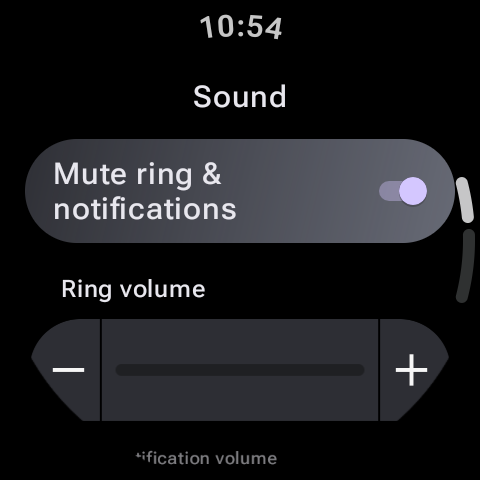
- Turn up your **Watch Vibration Intensity** to "Strong" in your main Wear OS system settings. During heavy movements like jumping jacks, standard vibrations can be hard to feel.
By transforming your Wear OS watch into a dedicated, tactile interval coach, you can keep your focus entirely on your physical performance, maintain optimal heart rate zones, and get the absolute most out of every minute of your training session.