
One of the most liberating experiences for runners, gym-goers, and outdoor walkers is heading out for a workout without a heavy smartphone bouncing in their pocket. For years, leaving your phone behind meant running in silence. However, modern Wear OS smartwatches (such as the Samsung Galaxy Watch series, Google Pixel Watch, and TicWatch) feature internal storage and built-in Bluetooth capabilities designed to solve this exact problem.
With the official Spotify application for Wear OS, you can download music, albums, playlists, and podcasts directly to your watch's local storage. This allows you to connect your Bluetooth headphones directly to your watch and enjoy your audio offline. Here is a step-by-step guide on how to configure offline music playback on your smartwatch.
Prerequisites for Spotify Offline
Before you begin, ensure you have the following ready:
- A Spotify Premium subscription. Offline downloading is a Premium feature; free accounts can only stream music over an active Wi-Fi or LTE connection.
- Your watch must be running Wear OS 2.0 or higher (Wear OS 3, 4, or 5 is highly recommended for the best experience).
- An active Wi-Fi connection on your watch to speed up the initial download process.
- A pair of Bluetooth headphones or earbuds paired directly to your watch.
Step 1: Install Spotify on Your Smartwatch
If you don't already have Spotify installed on your watch, let's download it:
- Open the Play Store app on your Wear OS watch.
- Search for "Spotify" and tap on the official app.
- Tap Install to download the application to your wearable.
- Once installed, open the app. You will be prompted to pair the watch app with your account.
- Select the activation method. You can pair it by opening the Spotify app on your phone (which will auto-detect the watch) or by entering a code on your browser at
spotify.com/pair.
Step 2: Download Playlists and Podcasts Offline
Once you are logged into your Spotify Premium account on your watch, follow these steps to save audio files locally:
- Ensure your watch is connected to a fast Wi-Fi network. Downloading over Bluetooth is extremely slow and will drain your battery.
- Open the Spotify app on your watch and swipe from left to right to access the main library navigation screen.
- Browse to your Playlists, Albums, or Podcasts.
- Select the specific playlist or album you want to download.
- Tap the "Download to watch" button (represented by an arrow pointing down into a circular outline).
- The arrow will start flashing, indicating the download has begun. Once complete, the arrow will turn solid green.
Pro Tip: Download While Charging
Downloading music is a heavy background task. To avoid battery drain during the download process, place your watch on its charger while downloading large playlists. The watch will remain connected to Wi-Fi and download the tracks rapidly.
Step 3: Connect Bluetooth Headphones to Your Watch
Since smartwatches do not play music out of their tiny notification speakers, you must pair Bluetooth headphones directly to the watch:
- Put your Bluetooth earbuds (e.g. Galaxy Buds, Pixel Buds, or AirPods) into pairing mode.
- On your watch, swipe down to open the Quick Settings panel and tap the Settings (Gear) icon.
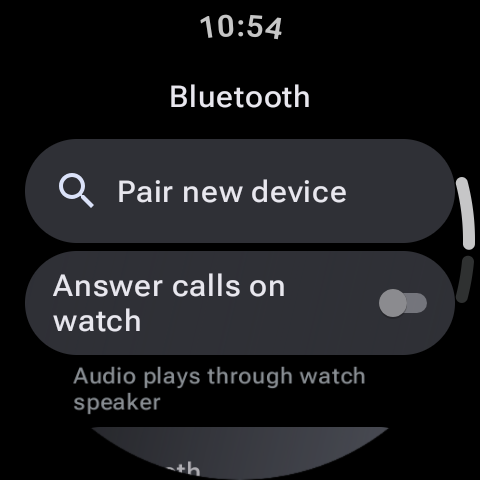
- Select Connections > Bluetooth (or Connectivity > Bluetooth).
- Ensure Bluetooth is toggled on, then tap Pair device or search for available devices.
- Select your headphones from the list. Confirm the pairing prompt on your watch.
Managing Local Storage Space
Smartwatches have limited internal storage, typically ranging from 8GB to 32GB. Operating systems and system files occupy a significant portion of this capacity. To manage your music storage efficiently, check this general reference table:
| Storage Capacity | Avg. Free Space for Apps & Music | Approximate Song Limit (96kbps) |
|---|---|---|
| 8 GB (Older Watches) | ~ 2.5 GB | ~ 500 Songs |
| 16 GB (Pixel Watch 1/2) | ~ 8.0 GB | ~ 1,800 Songs |
| 32 GB (Galaxy Watch 6) | ~ 21.0 GB | ~ 5,000 Songs |
How to Delete Downloaded Music:
If you run out of space or want to rotate your music library, go to the downloaded playlist or album inside the watch Spotify app and tap the "Downloaded" green arrow icon. Tap Remove to delete the files from your watch. This immediately frees up storage space without affecting the playlists on your phone or cloud account.
Final Thoughts
Enjoying music offline on Wear OS is a game-changer. By taking a few minutes to connect your watch to Wi-Fi, download your favorite training playlists, and pair your Bluetooth earbuds, you unlock true digital wellness. Leave your smartphone at home, step outside, and enjoy your workout soundtrack with only your smartwatch on your wrist!