
Swimming is one of the most effective full-body workouts. It challenges your cardiovascular system, builds muscular strength, and burns calories—all while being incredibly low-impact on your joints. If you own a modern Wear OS smartwatch, such as a Samsung Galaxy Watch or a Google Pixel Watch, you have a powerful swim computer strapped directly to your wrist. Thanks to advanced sensors and waterproof builds, these devices can track laps, strokes, distances, and efficiency metrics in the water.
However, taking an expensive electronic device into a swimming pool can feel intimidating if you don't know how to configure it correctly. In this guide, we'll demystify smartwatch water resistance, show you how to use Water Lock mode, and explain how to analyze your swimming workouts using Wear OS tools.
Understanding Smartwatch Water Resistance
Before jumping into the pool, it is vital to check your watch's water resistance rating. Most modern Wear OS watches are rated at 5 ATM and have an IP68 certification. Here is what that means in practical terms:
- 5 ATM: The watch is engineered to withstand pressure equivalent to a depth of 50 meters (164 feet) in calm water. This makes it perfectly safe for shallow-water swimming in pools or calm lakes.
- IP68: Indicates that the watch is dust-tight and can survive continuous immersion in fresh water, typically up to 1.5 meters for 30 minutes.
Note that these ratings apply to fresh or chlorinated pool water. If you swim in the ocean (saltwater), you must rinse your watch thoroughly with fresh tap water immediately after your swim to prevent salt crystals from corroding the charging ports and speaker grilles.
Activating Water Lock Mode: Why It is Essential
When you submerge an capacitive touchscreen in water, the liquid behaves like a series of fingers, triggering accidental screen swipes, launching random apps, or pausing your workout. To prevent this, Wear OS includes a built-in safety utility called Water Lock Mode.
Water Lock does three important things:
- It completely disables touch-screen inputs, so water droplets cannot trigger accidental menu taps.
- It stops "Raise to Wake" gestures to prevent display battery drain in the pool.
- Upon deactivation, it plays a sequence of low-frequency sound waves through the speaker to physically vibrate and eject trapped water droplets out of the acoustic chamber.
How to Turn on Water Lock
Swipe down on your home screen to open the Quick Settings shade. Tap the icon that looks like water droplets. The screen will immediately lock, showing a small water drop indicator. Alternatively, starting a swimming workout in Samsung Health or Fitbit will turn on Water Lock automatically.
Tracking the Swim: Laps, Lengths, and SWOLF
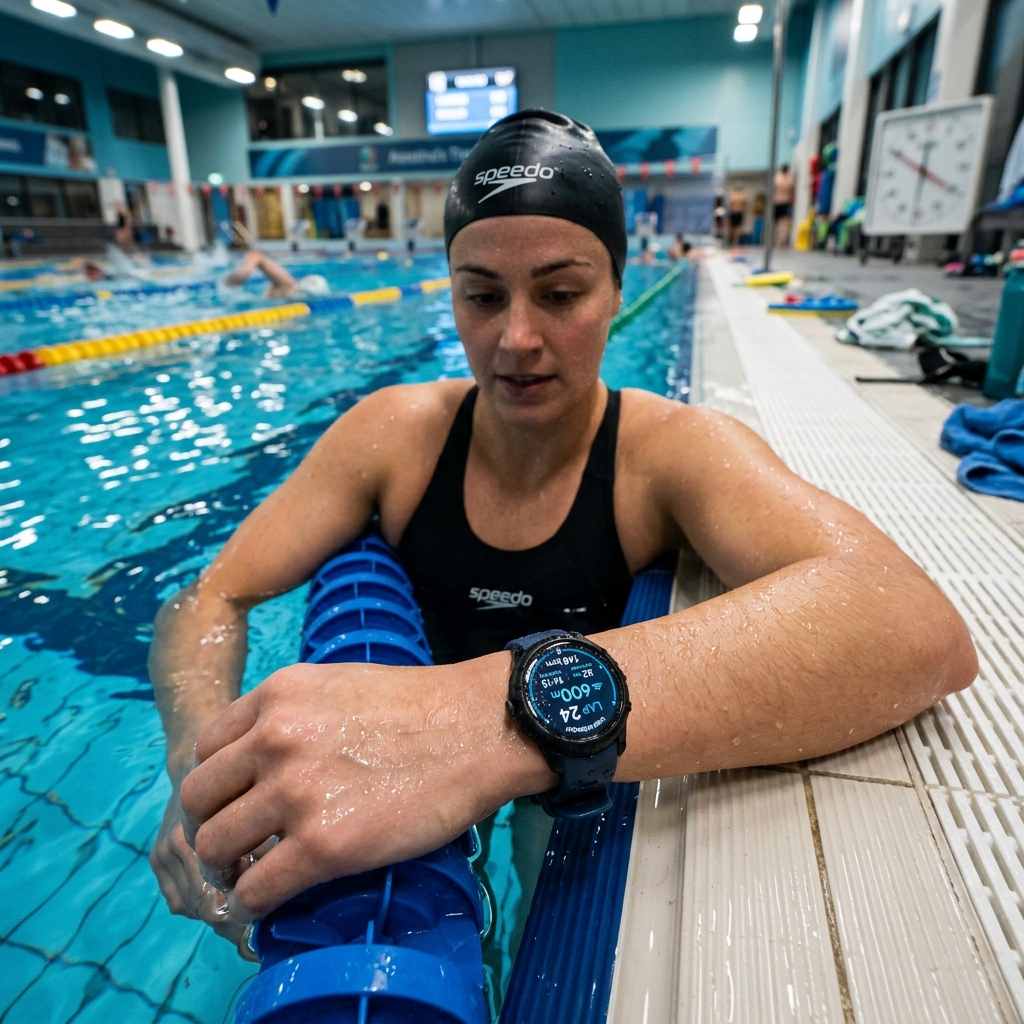
Because GPS signals cannot penetrate water, your watch relies on its internal inertial sensors (accelerometer and gyroscope) to track your swim. When you start a swimming workout, your watch asks for the pool length (e.g., 25 meters, 50 meters, or 25 yards). Using this measurement, the watch detects the moment you turn around or push off the wall, logging a completed lap.
Additionally, advanced algorithms analyze your wrist movements to calculate your SWOLF score. SWOLF (a blend of "swimming" and "golf") is a metric of swimming efficiency. It is calculated by adding the time (in seconds) it takes to swim one pool length to the number of strokes required to complete that length. A lower SWOLF score indicates better efficiency, meaning you are gliding further with fewer strokes.
Swimming App Comparison on Wear OS
Depending on your brand of watch, you have access to different pre-installed or third-party fitness apps. Let's compare the three leading choices:
| App Choice | Best For | Key Metrics Tracked | Offline Tracking |
|---|---|---|---|
| Samsung Health | Galaxy Watch users looking for a clean, built-in solution. | Laps, stroke type (freestyle, breaststroke), heart rate, SWOLF. | Yes (auto-saves data locally). |
| Fitbit | Pixel Watch users wanting simple, integrated stats. | Swim duration, distance, active zone minutes, calories. | Yes. |
| Swim.com | Dedicated swimmers wanting advanced analysis. | Pacing intervals, stroke count, detailed SWOLF graphs, custom drills. | Yes (syncs on connection). |
How to Clear Water and Deactivate Water Lock
Once your swim session is complete, press and hold the physical power/home button for two seconds (on some devices, you may need to rotate the crown or press another button). The watch will prompt you that it is turning off Water Lock. Keep your hand away from the speaker; you will hear a series of beeping tones, and you may see tiny drops of water fizzing out of the side speaker vents. Wipe the watch with a dry towel, and it is ready for normal daily use!
Whether you're training for a triathlon or just doing laps for cardiovascular fitness, your Wear OS smartwatch is the perfect companion. Configure your pool length, turn on Water Lock, and dive into your next session with confidence.