
A smartwatch is much more than a convenient accessory for tracking workouts and reading text messages. Strapped directly to your wrist, it serves as a highly capable personal safety device. Whether you are walking home late at night, hiking solo on backcountry trails, or living with a medical condition, modern Wear OS smartwatches can dial emergency services, broadcast your live GPS coordinates to loved ones, and detect if you have suffered a hard, incapacitating fall—even if you cannot reach your phone.
However, these features do not work out of the box. They require proactive setup, including linking contacts, authorizing location permissions, and deciding which button shortcuts will trigger the alerts. Let's look at how to set up and manage Emergency SOS and Fall Detection on both Samsung Galaxy Watches and Google Pixel Watches.
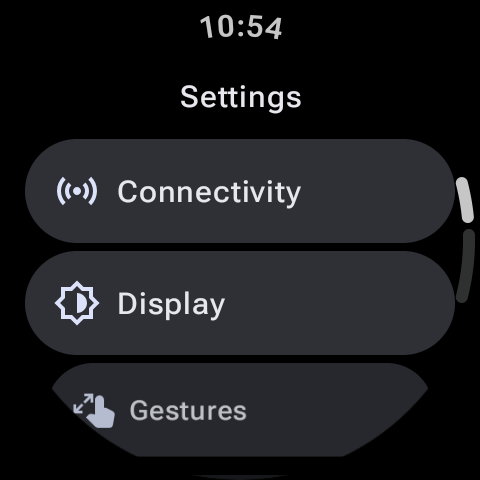
The Emergency SOS Feature Matrix
Modern Wear OS systems feature multiple safety mechanisms designed for different situations:
| Safety Feature | Trigger Action | System Action |
|---|---|---|
| Emergency SOS | Pressing the Power button 5 times rapidly. | Calls local emergency services (e.g. 911) & texts coordinates to contacts. |
| Fall Detection | High-impact force detected by accelerometer, followed by immobility. | Sounds alarm, displays prompt. Calls SOS if user does not respond in 60s. |
| Medical Info | Access via swipe on locked screen. | Displays blood type, allergies, and emergency contact card to first responders. |
How to Setup SOS on Samsung Galaxy Watch (4, 5, 6, 7 & Ultra)
Samsung’s safety suite is deeply integrated with Wear OS. You can configure it directly from your watch settings or within the Galaxy Wearable companion app on your phone.
- Open Settings on your Galaxy Watch.
- Scroll down and select Safety and emergency.
- Tap on Emergency SOS and toggle it to On.
- Choose your Emergency contact. You can select an existing contact or enter a custom number. By default, this will dial local emergency services (like 911), but you can set it to ring a spouse, parent, or doctor instead.
- Toggle on Share info with emergency contacts. This sends an automatic SMS containing your precise location, a map link, and your current battery status to your designated emergency group.
- Return to the safety menu and tap Hard fall detection. Set it to Always or During physical activity.
How to Setup SOS on Google Pixel Watch (1, 2 & 3)
Google Pixel Watches use the built-in Personal Safety app, which syncs directly with the Android Personal Safety system on Pixel and other Android smartphones.
- Press the crown button on your Pixel Watch and scroll down to open the Personal Safety app.
- Tap on Emergency SOS and toggle it On.
- Scroll down to select Emergency contacts. The app will direct you to add contacts via your phone. Once added, select who should receive emergency text coordinates.
- Toggle on Fall detection. The Pixel Watch uses its built-in accelerometer, gyroscope, and machine learning to distinguish a hard fall from a clap, jump, or tennis swing.
Pro Tip: Test-Triggering and Canceling
Once Emergency SOS is activated, pressing the side power key five times rapidly will trigger a 10-second countdown before dialing emergency services and sending SMS locations. The watch will sound a loud alarm and vibrate during this countdown. If you ever trigger this by mistake (e.g. while adjusting your glove or jacket), simply tap the "Cancel" icon on the watch screen during the 10-second window to abort the alert.
Critical Connectivity Requirements: Bluetooth vs. LTE
It is vital to understand the networking limitations of emergency features. How your watch calls for help depends on its hardware model:
- Bluetooth / Wi-Fi Smartwatches: Your watch cannot make phone calls or send text messages independently. If you trigger Emergency SOS or Fall Detection, your smartwatch must be within Bluetooth range of your companion smartphone. If your phone is dead, turned off, or left at home, your watch SOS alert will fail.
- LTE / Cellular Smartwatches: If you have an active eSIM and cellular plan, your watch can make emergency calls and send GPS SMS coordinates completely on its own, without your phone nearby. Even if your carrier service is expired or inactive, FCC regulations require cell towers to route emergency 911 calls from any device with a functional LTE antenna.
Summary
Configuring Emergency SOS and Fall Detection only takes five minutes, but it could make all the difference in an emergency. Set your contacts, turn on fall detection, and make sure you understand your watch’s cellular limitations to guarantee peace of mind during your daily activities.