
A smartwatch is only as smart as its connection. The seamless wrist-based experience of reading text messages, receiving weather alerts, and syncing steps relies on a complex, continuous wireless data chain. Your watch communicates with your smartphone via Bluetooth, which in turn syncs with cloud-based servers. If a single link in this chain breaks, your smartwatch turns into little more than a simple local digital timer.
If you've noticed a "Disconnected" cloud icon on your watch face, are failing to receive notifications, or find that your workout steps are refusing to sync with your phone's fitness app, don't panic. Wear OS connection glitches are common but usually easy to resolve. Follow this step-by-step troubleshooting guide to restore a stable sync chain.
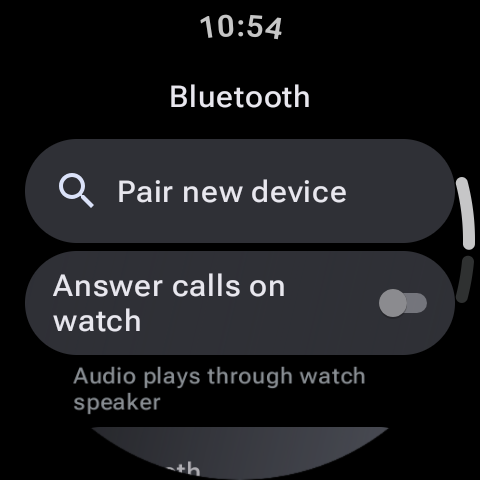
Step 1: Check Bluetooth Status and Toggle Connections
It sounds simple, but the majority of connection drops are caused by Bluetooth state glitches on either the watch or the phone. Let's restart the connection:
- Swipe down on your watch screen to open the Quick Settings panel. Check if the Bluetooth icon is active. Toggle it off, wait 10 seconds, and turn it back on.
- Perform the same step on your smartphone: swipe down, toggle Bluetooth off, wait, and toggle it back on.
- Check if your watch attempts to reconnect. If it remains disconnected, open the companion watch app (Galaxy Wearable or Pixel Watch app) on your phone and click the Connect button manually.
Step 2: Stop Phone OS Background Restraints
Modern smartphone operating systems (especially Android versions 12, 13, and 14) feature strict battery management algorithms. If the OS decides that your watch companion app is consuming too much background energy, it will put the app to sleep, killing the Bluetooth sync service in the background.
To prevent this, you must exclude your watch companion app from phone battery optimization:
- Open your phone's Settings > Apps.
- Find your watch companion app (e.g. Galaxy Wearable, Pixel Watch, or Fitbit).
- Tap Battery or Power usage.
- Change the setting from "Optimized" or "Restricted" to "Unrestricted". This ensures the phone keeps the sync service running continuously in the background.
Quick Fix: Clear Bluetooth Cache
If pairing fails repeatedly, go to your phone's Settings > Apps > Show System Apps > Bluetooth and tap Clear Cache (do not clear data, just cache). Restart your phone afterwards. This clears corrupted pairing handshake logs and solves pairing loops.
Step 3: Fix Notification Delivery Failures
If your watch shows "Connected" but you aren't receiving notifications, the issue is likely a permission block. Android requires explicit Notification Access permissions for wearable companion apps to read and forward phone alerts.
- On your phone, search settings for "Device & app notifications" or "Notification Access."
- Ensure that your watch companion app is listed as Allowed. If it is already allowed, toggle it off, restart the phone, and toggle it back on to reset the permission.
- Additionally, verify that "Do Not Disturb" or "Theater Mode" is disabled on both your watch quick settings panel and your phone, as these modes block notifications immediately.
Step 4: Resolve Health and Step Sync Delays
If steps, sleep metrics, or heart rate data are recorded on your watch but refuse to display in health apps (Fitbit, Samsung Health, or Google Fit) on your phone, the issue is often database synchronization lag.
- Open your phone's health app (e.g. Samsung Health) and navigate to Settings > Sync with Samsung Cloud (or equivalent cloud settings) and tap Sync now to force a database push.
- If you are using Google Fit, verify that your watch is logged into the exact same Google account as your phone. Account mismatch is a common cause of health sync failure.
Step 5: The Last Resort: Transfer or Reset
If your watch is completely stuck and refuses to connect, you may need to reset it. In older Wear OS versions, connecting to a new phone or resolving a corrupted pairing required a full factory reset. Fortunately, Wear OS 4 and 5 support Transfer Watch.
Go to your watch Settings > General > Transfer watch to new phone. This allows the watch to connect to a new device (or re-pair with a reset phone) without wiping your local database, settings, or watch apps.
If this fails, go to Settings > System > Disconnect & reset to perform a factory wipe. Once completed, re-pair the watch as a new device through the phone's wearable companion app, restoring your settings from a cloud backup if available.
Restoring the Flow
By toggling Bluetooth, exempting companion apps from phone battery optimization restrictions, and resetting notification permissions, you can solve 99% of Wear OS sync dropouts. Keep your watch and phone firmware updated, clear your Bluetooth cache when loops occur, and enjoy a stable connection on your wrist!