
Smartwatches pack incredible computing power into an extremely small chassis. With high-speed multi-core processors, cellular antennas, Wi-Fi chips, and advanced biometric sensors directly under the screen, heat generation is inevitable. However, because Wear OS smartwatches like the Samsung Galaxy Watch or Google Pixel Watch do not have active cooling fans, they rely entirely on passive heat dissipation. When thermal limits are breached, your watch will automatically initiate thermal throttling to protect its battery and processor, resulting in sluggish performance, disabled features, or complete system shutdown.
If your watch is feeling hot to the touch, pausing its charging cycle, or flashing an overheating alert, you need to address the issue immediately. Prolonged exposure to high temperatures can degrade your lithium-ion battery permanently and cause hardware failure. Let's explore why Wear OS devices overheat and the concrete steps you can take to cool your smartwatch down and prevent future thermal issues.
Common Symptoms of Wear OS Overheating
When a Wear OS smartwatch detects that its internal temperature is rising past safe thresholds, it will trigger specific defense mechanisms. Knowing these symptoms helps you catch overheating before the device shuts down entirely:
- Dimmed Screen: The display will automatically dim to its lowest setting, and you won't be able to increase the brightness.
- Disabled LTE and Wi-Fi: The watch will disable standalone cellular and Wi-Fi connections, forcing a fallback to Bluetooth to reduce power draw.
- Slow Performance: Apps will stutter, lag, or fail to load as the CPU throttles its clock speed to cool down.
- Charging Paused: If the watch is on its charger, a message like "Charging paused: Watch temperature too high" will appear, and charging will halt.
- Emergency Shutdown: A full-screen warning will appear stating that the watch must turn off to cool down.
Why Does My Wear OS Smartwatch Get Hot?
Overheating is usually caused by a combination of software workload, environment, and battery state. Understanding the exact root causes can help you prevent future occurrences.
| Overheating Trigger | Thermal Impact | Primary Mitigation |
|---|---|---|
| LTE / Cellular Searching | Extreme heat generation when signal is weak. | Set mobile networks to "Auto" or "Off" when near your phone. |
| GPS Workout Tracking | Continuous sensor and antenna polling under high CPU usage. | Limit standalone GPS tracking to open-air environments. |
| Charging in Warm Rooms | Heat from fast-charging combined with warm ambient air. | Charge on cool, flat surfaces away from direct sunlight. |
| Background App Loops | Stuck sync processes forcing 100% CPU utilization. | Force close unresponsive apps or restart the watch. |
Step-by-Step Guide to Fix Wear OS Overheating
If your watch is currently hot or frequently triggers thermal warnings, work through the following solutions to stabilize the device:
1. Optimize Cellular Settings (LTE Models)
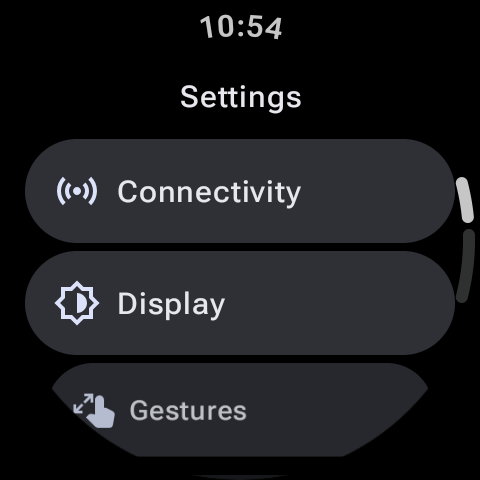
Standalone LTE is the absolute biggest heat generator on a smartwatch. When your watch loses connection with your phone's Bluetooth, it turns on its internal cellular radio. If you are in an area with a weak cellular signal, the watch will pump extra power into the antenna to maintain a connection, causing the battery and processor to heat up rapidly. Switch your mobile connection mode from "Always On" to "Auto" or "Off" via Settings > Connections > Mobile Networks.
2. Prevent Charging Thermal Loops
Wireless charging naturally generates heat. If you use a third-party charging dock, or place your charger on a soft surface like a bed or a couch, the heat gets trapped beneath the watch. Always charge your Wear OS smartwatch using the official puck charger on a hard, flat surface (such as a wooden desk or marble countertop). Avoid charging your watch in direct sunlight or in rooms warmer than 80°F (27°C).
Pro Tip: The Quick Cool-Down Method
If your watch is extremely hot and stuck in an overheat loop, do not put it in the freezer! The rapid change in temperature can cause condensation to form inside the sealed watch chassis, ruining the water-resistance seals and frying the motherboard. Instead, turn the watch off, take it off your wrist, and place it in front of a fan or on a cool metal surface for 10 minutes.
3. Control CPU Workload and Background Apps
A corrupted application database or a stuck background synchronization process can peg your smartwatch's processor at 100%. If you notice your watch heating up during normal desktop use, perform a soft restart by holding down the power button and selecting "Restart." Additionally, uninstall custom third-party watch faces that run unoptimized animations or complex scripts, as they are notorious for triggering CPU-related overheating.
4. Update Your Firmware
Both Google and Samsung regularly release software patches to optimize thermal algorithms and fix background CPU bugs. Make sure your watch is running the latest version of Wear OS by heading to Settings > Software update > Download and install. Keeping your apps updated via the on-watch Google Play Store is also essential to prevent runaway background processes.
Summary
Overheating on Wear OS is a manageable issue. By setting LTE to Auto, charging on cool surfaces, avoiding direct sunlight during heavy GPS workouts, and keeping your firmware updated, you can prevent your smartwatch from throttling and extend the lifetime of its internal battery.