
Wear OS allows you to install standalone applications directly onto your smartwatch—from music streamers like Spotify and tracking services like Strava to productivity tools and retro pixel games. However, running fully functional apps on a device with limited RAM (typically 1GB to 2GB) and a small mobile processor has its challenges. You may find that an app refuses to open, gets stuck on a loading spinner, lags during navigation, or suddenly closes back to your watch face.
If you are experiencing app crashes or freezes on your Google Pixel Watch or Samsung Galaxy Watch, don't worry. Android’s wearable platform provides the exact same robust app-management utilities as your smartphone, adapted for the circular screen. Let's look at the troubleshooting protocols to stop Wear OS apps from crashing.
Why Do Watch Apps Crash?
Before fixing the software, it helps to understand why a Wear OS app might be struggling:
- Out of Memory (OOM): The system ran out of RAM and aggressively terminated the app’s background process.
- Stale Cache Files: Temporary sync files or tokens have corrupted, causing the app to crash during startup check.
- Companion Version Mismatch: The watch app and phone app versions are out of sync, breaking API communication.
- Permission Revocation: The app crashed because it attempted to access sensors, location, or files without authorized permissions.
Step-by-Step App Repair Protocol
Follow these steps in order to resolve persistent app performance issues on your watch:
Step 1: Force Close the App and Purge RAM
When you exit an app, Wear OS often keeps it cached in the background. If the app is frozen, exiting and returning will just reopen the frozen instance. You must force terminate it:
- Open Settings on your watch.
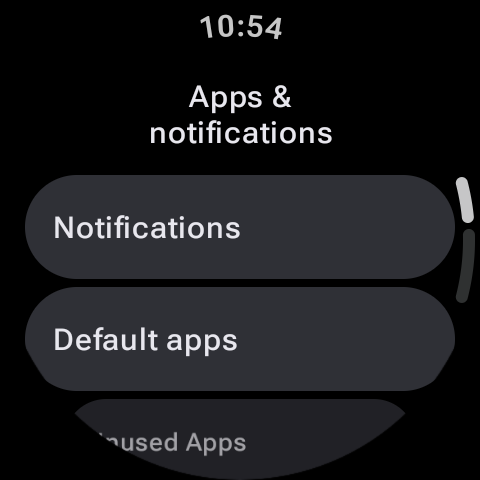
- Tap on Apps or Apps & notifications.
- Tap on App info (or Choose App).
- Find and tap on the problematic app.
- Tap Force stop. This kills all active processes instantly.
Step 2: Clear App Cache and Data
If force closing doesn't work, local database corruption is the likely culprit. Clearing the cache removes temporary files, while clearing data resets the app to a freshly-installed state.
- From the app info page (Settings > Apps > App info > [Select App]), scroll down and tap on Storage.
- Tap Clear cache. Test the app.
- If it still crashes, return to the menu and tap Clear data (Note: You may need to log back into the app or re-configure settings).
Pro Tip: Quick RAM Purging via Recent Apps
You can quickly clear your active memory without digging into settings. On Samsung Galaxy Watches, swipe up from the bottom of the screen (or double-press the Home key depending on configuration) to open the Recent Apps deck. Swipe up on any app card to close it, or tap the trashcan icon to purge all background apps from the memory cache.
Step 3: Update App and Wear OS System
Apps often crash because they rely on new APIs introduced in system updates, or because a bug has already been patched in a newer app release.
- Open the Play Store app directly on your smartwatch.
- Scroll down to the bottom and select Manage apps.
- Tap Update all to install any pending application updates.
Comparing Repair Steps and Data Impact
Below is a summary of actions you can take, ordered from lowest to highest impact on your local watch configurations:
| Troubleshooting Action | System Impact | Data Retained? | When to Use |
|---|---|---|---|
| Force Stop | Kills active CPU process. | Yes (100%) | App is frozen, non-responsive. |
| Clear Cache | Wipes temp cache/sync files. | Yes (100%) | App lags, images fail to load. |
| Clear Data | Resets app database to default. | No (Requires Re-login) | App crashes immediately on launch. |
| Uninstall / Reinstall | Removes app packages entirely. | No | Corrupted file system, update failure. |
Summary
App crashes on Wear OS are usually resolved with a simple Force Stop or a Cache Clear. By maintaining updated applications via the on-watch Play Store and checking system permissions, you can guarantee a stable and smooth app experience on your wrist.