
There are several scenarios where you might need to factory reset your Wear OS smartwatch without having your companion phone nearby. Perhaps you upgraded your smartphone and no longer have access to the old device, or your watch is stuck in an infinite bootloop. Alternatively, you might have forgotten the lock screen PIN or pattern on the watch face itself, leaving you completely locked out of your device. In the past, Google’s wearable platform required a constant phone connection to perform a wipe. Fortunately, modern Wear OS versions (including Wear OS 3, 4, and 5) provide independent reset options directly on the hardware.
In this guide, we will walk you through the two primary methods of resetting your smartwatch without a phone: using the system settings menu (if the watch is unlocked and bootable) and entering the physical Recovery Menu (if you are locked out or the watch is frozen).
Before You Reset: The Google Device Protection Warning
Before proceeding with a factory reset, it is critical to understand Factory Reset Protection (FRP). To prevent theft, Wear OS smartwatches tie themselves to your Google Account. If you format the watch without first removing your Google Account, the watch will prompt for the original account email and password during the initial setup phase. If you are selling or gifting the watch, ensure you delete your Google Account from the device first via settings, or be ready to log in during setup.
| Reset Method | Prerequisites | Ideal Scenario |
|---|---|---|
| System Settings | Access to settings menu, watch PIN known. | Pre-sale cleanup, pairing to a new phone. |
| Recovery Mode (Buttons) | Physical buttons functional, watch powered off. | Forgotten watch PIN, bootloop, frozen screen. |
| Find My Device (Web) | Watch connected to Wi-Fi/LTE, Google account active. | Lost or stolen watch, remote wipe needed. |
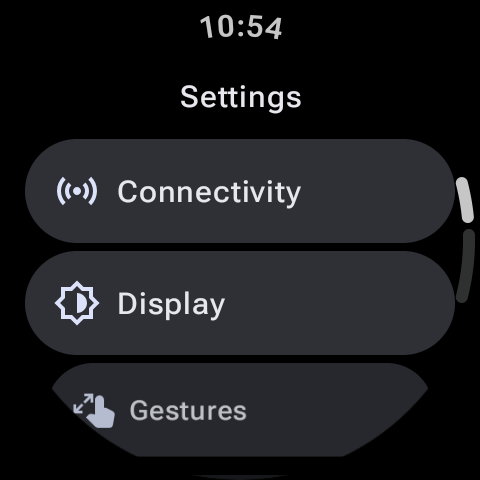
Method 1: Resetting Directly from Watch Settings
If your smartwatch is running normally and you can navigate its menus, you can initiate a reset directly from the Settings screen. The layout differs slightly depending on whether you own a Samsung Galaxy Watch or a Google Pixel Watch.
For Samsung Galaxy Watch (Wear OS 3, 4 & 5)
- Swipe down on the watch face and tap the Settings (gear) icon.
- Scroll down and tap on General.
- Scroll down to find and select Reset.
- The watch will prompt you to back up your data to the Samsung Cloud. If you don't need a backup, scroll down and tap Reset again to confirm.
For Google Pixel Watch & Other Wear OS Devices
- Press the crown button and tap on Settings.
- Scroll down and select System.
- Scroll down and tap on Disconnect & reset.
- Read the warning indicating that your data will be erased and the watch will unpair. Tap the checkmark icon to confirm and initiate the formatting process.
Pro Tip: Transfer Instead of Resetting
If you are resetting your watch solely to pair it with a new phone, you don't have to erase your apps and custom layouts. On Wear OS 4 and 5, navigate to Settings > General > Transfer watch to new phone. This initiates a secure Bluetooth handshake to transfer pairing profiles without wiping your local smartwatch data.
Method 2: Force Reset via Hardware Recovery Menu
If you have forgotten your lock screen PIN or your smartwatch is frozen in a bootloop, you will need to trigger a hardware-level factory wipe. This requires a specific physical button sequence during startup.
Hard Resetting the Samsung Galaxy Watch (4, 5, 6, & 7)
- Simultaneously press and hold both the Home (Power) and Back buttons on the side of the watch.
- Keep holding them until you see the word "Rebooting..." appear on the screen, then release both buttons.
- Immediately press the Home button three or four times rapidly. This will trigger the BIOS/Reboot Select Menu.
- Use the Home button to scroll through the menu options until Recovery is highlighted.
- Press and hold the Home button for 2 seconds to select it. The watch will reboot into Android Recovery.
- Swipe down to highlight Wipe data/factory reset, then swipe right (or press Home) to confirm. Highlight Factory data reset and swipe right to finalize the wipe.
Hard Resetting the Google Pixel Watch (1, 2, & 3)
- Power off your Pixel Watch by holding the crown and selecting power off (or hold both side buttons for 15 seconds to force-reboot).
- Turn on the watch. As soon as the white Google "G" logo appears on the screen, tap the top-left and bottom-right corners of the screen simultaneously.
- This will boot the watch into the Fastboot menu.
- Use the side buttons to scroll through options until Recovery Mode is displayed, then click the crown to select it.
- When the "No Command" screen with an exclamation mark appears, hold down the crown button and swipe up on the screen.
- Select Wipe data/factory reset and click the crown to execute.
Summary
Resetting your Wear OS watch without a phone is a straightforward process when you know the shortcuts. Whether you use the system settings for a soft cleanup or the hardware recovery keys to unlock a frozen device, you can quickly restore your watch to factory conditions and start fresh.