
The Samsung Galaxy Watch series, running on Google's Wear OS, represents some of the most versatile hardware in the wearable ecosystem. Whether you own the Galaxy Watch 4, 5, 6, or the latest Galaxy Watch 7, your device is more than just a fitness tracker—it is a personal statement. Customizing the watch face allows you to display critical information at a glance, align the watch style with your daily wardrobe, and optimize battery usage.
In this guide, we will walk through the exact steps to customize watch faces directly on your Galaxy Watch, how to use the Galaxy Wearable companion app for advanced edits, and how to configure complications to maximize efficiency.
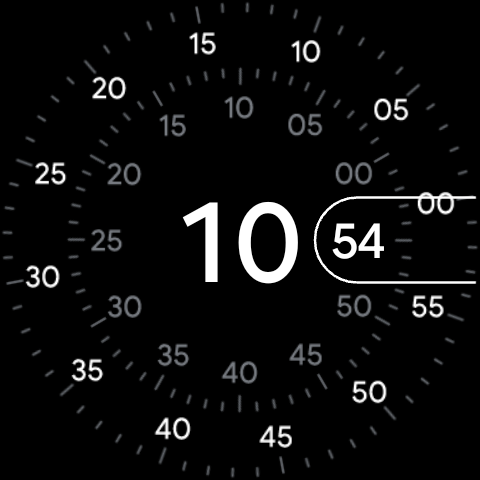
Method 1: Customizing Directly on the Galaxy Watch
The quickest way to refresh your watch's appearance is to customize it directly from your wrist. Galaxy Watches feature high-resolution AMOLED screens that make editing visual elements surprisingly easy.
Step-by-Step Wrist Customization:
- Wake up your Galaxy Watch and navigate to the home clock screen.
- Press and hold the center of the display for two seconds. The screen will zoom out, and you will enter the watch face selector gallery.
- Swipe left or right to scroll through your currently downloaded watch faces.
- Once you find the watch face you want to customize, tap the "Customize" button at the bottom of the screen.
- Use your finger to swipe left or right to toggle between different customizable elements:
- Background / Style: Change the background color, pattern, or dial design.
- Color: Select the accent color for text, second hands, or icon highlights.
- Complications: Edit individual data slots (more on this below).
- Rotate the physical rotating bezel (on Classic models), swipe on the digital bezel, or swipe up and down on the screen to scroll through options for each element.
- Once satisfied, click the physical Home button (top right) to save your customized face.
Method 2: Using the Galaxy Wearable Companion App
For more detailed modifications or to browse a larger catalog of watch faces, using the Galaxy Wearable app on your Android phone is highly recommended. The larger touch screen makes choosing colors and complications effortless.
Pro Tip
You can browse hundreds of free and premium watch faces in the Google Play Store. Simply search for "Wear OS watch face" on your phone, download one, and it will automatically sync to your Galaxy Wearable app under the "Downloaded" section.
Step-by-Step App Customization:
- Launch the Galaxy Wearable app on your paired smartphone.
- Tap the "Watch faces" button on the home dashboard.
- Scroll through the categories (such as Classic, Simple, Informative, Graphical, and Health) or view your custom downloaded options. Tap a face to immediately apply it to your watch.
- Tap the "Customize" button on your active watch face at the top of the screen.
- From here, you can select background patterns, dial types, hands, color themes, and complications in a single view.
- Tap "Save" at the bottom of the screen to send the changes to your watch instantly.
How to Setup and Edit Complications
Complications are the widgets that display live data (like battery percentage, step counter, weather, or next calendar event) on your watch face. Choosing the right complications turns your watch face into an actionable dashboard.
| Complication Category | Recommended Widgets | Best Use Case |
|---|---|---|
| Health & Fitness | Daily Steps, Heart Rate, Active Time | Staying active and monitoring cardiovascular health throughout the day. | Productivity | Next Event, World Clock, App Shortcut | Managing a busy workday and jumping straight to calendar details or timers. |
| System Info | Battery %, Weather Forecast, Media Controller | Monitoring watch status and controlling media playbacks on the fly. |
Editing Complications:
- In the customization screen, tap on a highlighted complication outline.
- Select from the menu of available widgets. Third-party apps like Spotify, Todoist, or Google Maps may also provide custom complications.
- Confirm the changes to apply them to your layout.
Maximizing Battery Life with Custom Layouts
Since Galaxy Watches use OLED screens, every active pixel consumes battery. You can significantly extend your watch's battery life by optimizing your customized watch faces:
- Choose Dark Backgrounds: OLED displays turn off pixels to show black, conserving energy. Avoid bright, solid-color backgrounds.
- Limit Animations: Moving graphics and live wallpapers drain battery much faster than static dials.
- Reduce Complications: Widgets that constantly update in the background (like live heart rate monitors or GPS location updates) require more CPU processing cycles.
Final Thoughts
A Galaxy Watch is only as useful as you make it. By setting up distinct watch faces for work, workouts, and formal events, and equipping them with the right complications, you can ensure the right data is always just a glance away. Spend a few minutes exploring the customization menus on your phone and watch to build your perfect wrist layout!