
One of the greatest benefits of owning a modern smartwatch is independent mobility. When you go out for a morning run, hit the weights at the gym, or walk the dog, you shouldn't have to carry a bulky smartphone in your pocket just to listen to your favorite playlist or audiobooks. Wear OS smartwatches come equipped with dedicated Bluetooth controllers and storage space, allowing you to connect wireless headphones directly to your watch.
Whether you use Apple AirPods, Samsung Galaxy Buds, Google Pixel Buds, or any other brand of Bluetooth headphones, pairing them directly to your wrist is quick and easy. In this step-by-step guide, we will walk you through the pairing process, quick access methods, and how to troubleshoot connectivity issues.
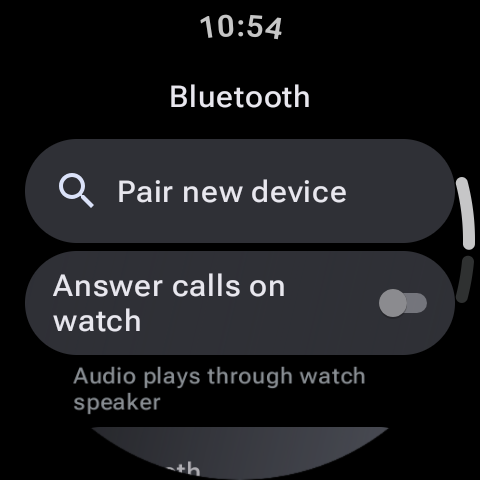
Step 1: Put Your Headphones into Pairing Mode
Before you begin navigating menus on your watch, you must make your Bluetooth headphones "visible" to new devices. How you do this depends on your headphone manufacturer:
- For AirPods: Place both AirPods in the charging case, open the lid, and press and hold the setup button on the back of the case until the status light flashes white.
- For Pixel Buds / Galaxy Buds: Place the earbuds in the case with the lid open, then press and hold the pairing button on the case, or place the earbuds in your ears and hold the touch pads on both buds simultaneously for a few seconds.
- For Over-ear Headphones: Press and hold the power/Bluetooth button until you hear a voice prompt indicating it is in pairing mode, or until the status LED begins to flash rapidly.
Step 2: Connect via Wear OS Settings
Once your headphones are in discovery mode, follow these steps on your smartwatch display:
- Swipe down from the top of your watch home screen and tap the Settings (gear) icon.
- Select Connectivity (or Connections on Samsung Galaxy Watches).
- Tap Bluetooth.
- Ensure the master Bluetooth toggle switch is turned On.
- Tap Bluetooth audio or Available devices (depending on your specific model). Your watch will begin scanning for nearby active Bluetooth targets.
- Locate the name of your headphones in the list and tap on them to initiate the connection.
- If prompted, confirm the pairing request. Once successful, the device status will change to "Connected" or "Connected for audio".
Connection Priority
If your earbuds support multi-point connection, they may automatically latch onto your phone's signal when you try to pair them to your watch. To prevent pairing errors, temporarily toggle off Bluetooth on your smartphone before connecting your earbuds to your watch.
Step 3: Quick Connect via Quick Settings Panel
Once you have paired your headphones to your watch for the first time, you don't need to dive deep into the settings menu to connect them again. Wear OS features a quick shortcut:
- Swipe down on your watch face to open the Quick Settings shade.
- Look for the Media Output or Bluetooth Audio icon (represented by a watch icon next to a speaker, or a Bluetooth logo).
- Tap the icon to display your paired audio devices.
- Tap your headphones to connect instantly.
Popular Offline Audio Options on Wear OS
Now that your wireless headphones are connected, you need audio sources. Here are the most common methods for streaming or storing music directly on your wrist:
| App Provider | Offline Capability | Requires Subscription? |
|---|---|---|
| Spotify | Download playlists, albums, and podcasts directly. | Yes (Spotify Premium required for offline downloads). |
| YouTube Music | Download tracks via Wi-Fi for offline listening. | Yes (YouTube Music Premium required). |
| Local MP3 Transfer | Transfer your own audio files from phone storage. | No (Totally free, works with standard media files). |
Troubleshooting Bluetooth Audio Issues
- Audio Stutters During Outdoor Runs: Human bodies block Bluetooth signals. Because smartwatch antennas are tiny, placing your watch on your left wrist while your headphone's master receiver is in your right ear can occasionally cause audio dropouts. Try switching the watch to your opposite wrist or adjusting your headphone fit.
- Headphones Not Showing Up in Scan: Turn Bluetooth off and on again in your watch settings. Ensure the earbuds are not currently connected to another active device (like your tablet or computer).
- Low Volume Issues: Some headphones do not sync their internal volume with the Wear OS system volume. Try adjusting the volume using the physical touch gestures on the headphones themselves, or go to Settings > Sound on your watch to adjust volume levels.
Pairing Bluetooth headphones to your Wear OS device unlocks a truly independent experience. Step out, leave your phone behind, and enjoy your workout or commute with your favorite soundtracks playing directly from your wrist.